Troubleshooting
Common problems and how to fix them. If yours is not here, email support@clarohistoria.com.
Sync notices
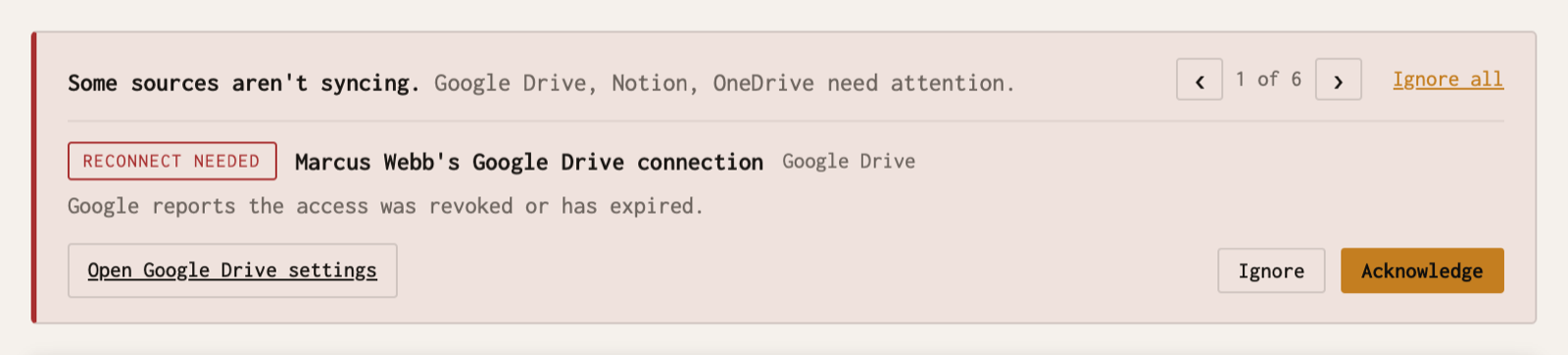
These appear at the top of a project when a source stops syncing. Nothing is deleted while a notice is showing; syncing for that source simply pauses until it is fixed.
| Notice | What it means | How to fix it |
|---|---|---|
| Reconnect needed | The sign-in for a Google, OneDrive or Notion connection was revoked, expired or can no longer be renewed (for example the person changed their password, removed the app, or left the workspace). | Reconnect it: the person who connected it signs in again from My Settings, or from Project Settings for Notion. Anyone on the project can connect their own account instead. |
| Needs relinking | The person who linked a Drive or OneDrive folder was removed from the workspace, so nobody is reading the folder. | Anyone on the project with their own Google or Microsoft connection clicks Relink in the notice. Claro Historia checks that they can open the folder first. |
| Can’t be read | The folder was deleted, moved out of reach, put in the trash, or the account that linked it can no longer open it. | Restore or re-share the folder, then click Relink. If it is gone for good, remove it in Project Settings. |
| Partly synced | The folder has more than 100 files, so only the first 100 sync. | Link subfolders separately so each stays under 100 files. |
Ignore hides a notice for 24 hours and Acknowledge (“I’ll take care of it”) hides it for 7 days, on your browser only. Teammates still see it, and it returns if the problem is still there.
Content is missing or out of date
- Check Project Settings → Sync for the last sync time and click Sync All.
- Check that the source is linked to the project, not just connected for the workspace. Connecting a tool does not read anything until a project links a repository, channel, space or folder.
- Slack: private channels must have the Claro Historia app added before they can be read. Drive and OneDrive: only the first 100 files per folder sync, and only Google Docs and PDF, Word, Excel, PowerPoint, plain-text, Markdown and CSV files are read.
- The first sync of a large source can take up to an hour.
I cannot connect a tool
- GitHub (organization): an organization owner may need to approve the installation.
- Slack: installing apps may need a Slack workspace owner or admin.
- Microsoft Teams and OneDrive: your Microsoft 365 administrator may need to approve the app for your organization.
- Self-hosted GitLab: the instance URL must be reachable from the internet.
- Only admins connect workspace tools. If you do not see the Admin item in the sidebar, ask an admin.
See the page for your tool for the exact permissions requested.
The chat says I reached my limit
The free plan includes a monthly number of chat questions and document-reading syncs. The counts reset on the first of the month. See Plans and limits or email us about a paid plan.
I cannot create a project or invite someone
The free plan has limits on projects and members. See Plans and limits.
Signing in
- Forgot your password: use Forgot password? on the sign-in page.
- “Your workspace requires Google SSO”: an admin turned on single sign-on. Use Sign in with Google.
- Lost your authenticator app: sign in with one of your recovery codes, then set up two-factor authentication again in My Settings. If you have none left, email support from your account address.
- Invitation expired: invitations last 7 days. Ask an admin to send a new one.
- “Someone at your company already has a workspace”: ask a colleague there to invite you instead of creating a second workspace.