GitHub
Pull requests, issues, commits and milestones from the repositories you choose.
What Claro Historia reads
- Pull requests
- Issues
- Commits
- Milestones
Access is read-only. Claro Historia does not create, change or delete anything in GitHub.
Permissions requested
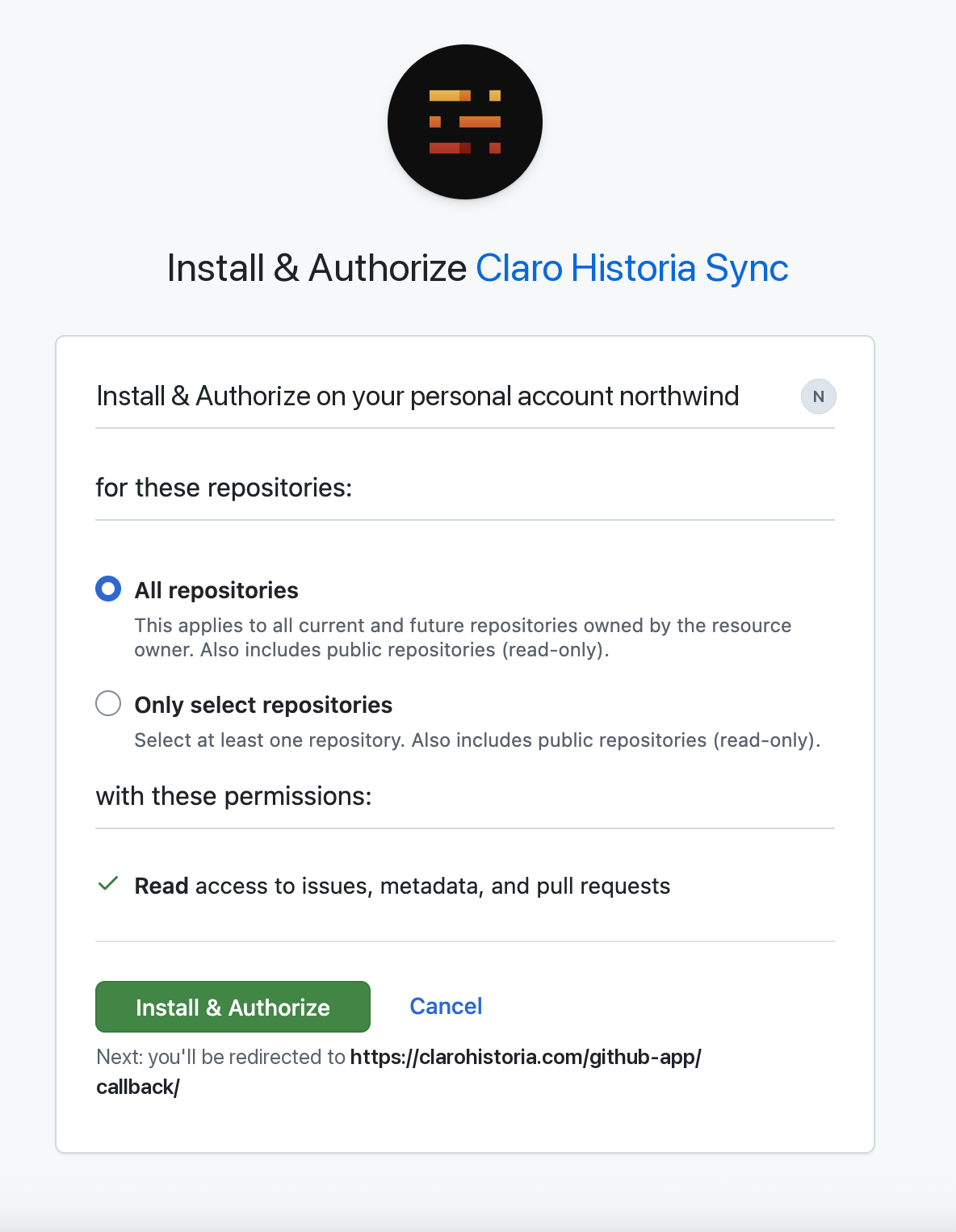
- Read access to issues, metadata and pull requests, only in the repositories you select when you install the app. GitHub lists these permissions on its install screen before you confirm.
Before you start
- A workspace admin installs the app once. For repositories owned by a GitHub organization, an organization owner may need to approve the installation.
- Each project then picks which of those repositories to sync. No tokens are needed.
- The person who installs the app confirms who they are on GitHub. Only the person who installed it (or, for a personal account, the account owner) can connect it to a workspace.
Install the GitHub App (workspace admin)
- Open Workspace Settings → Sources.
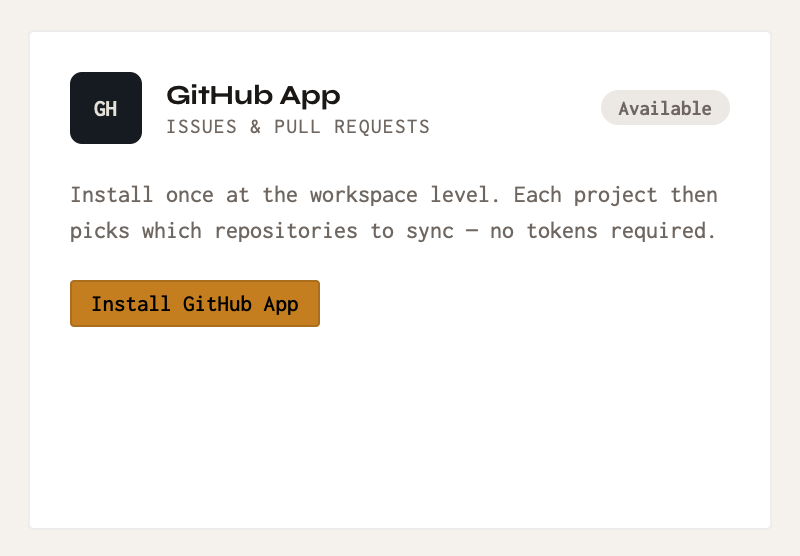
- Under Code & Repos, find GitHub App and click Install GitHub App.
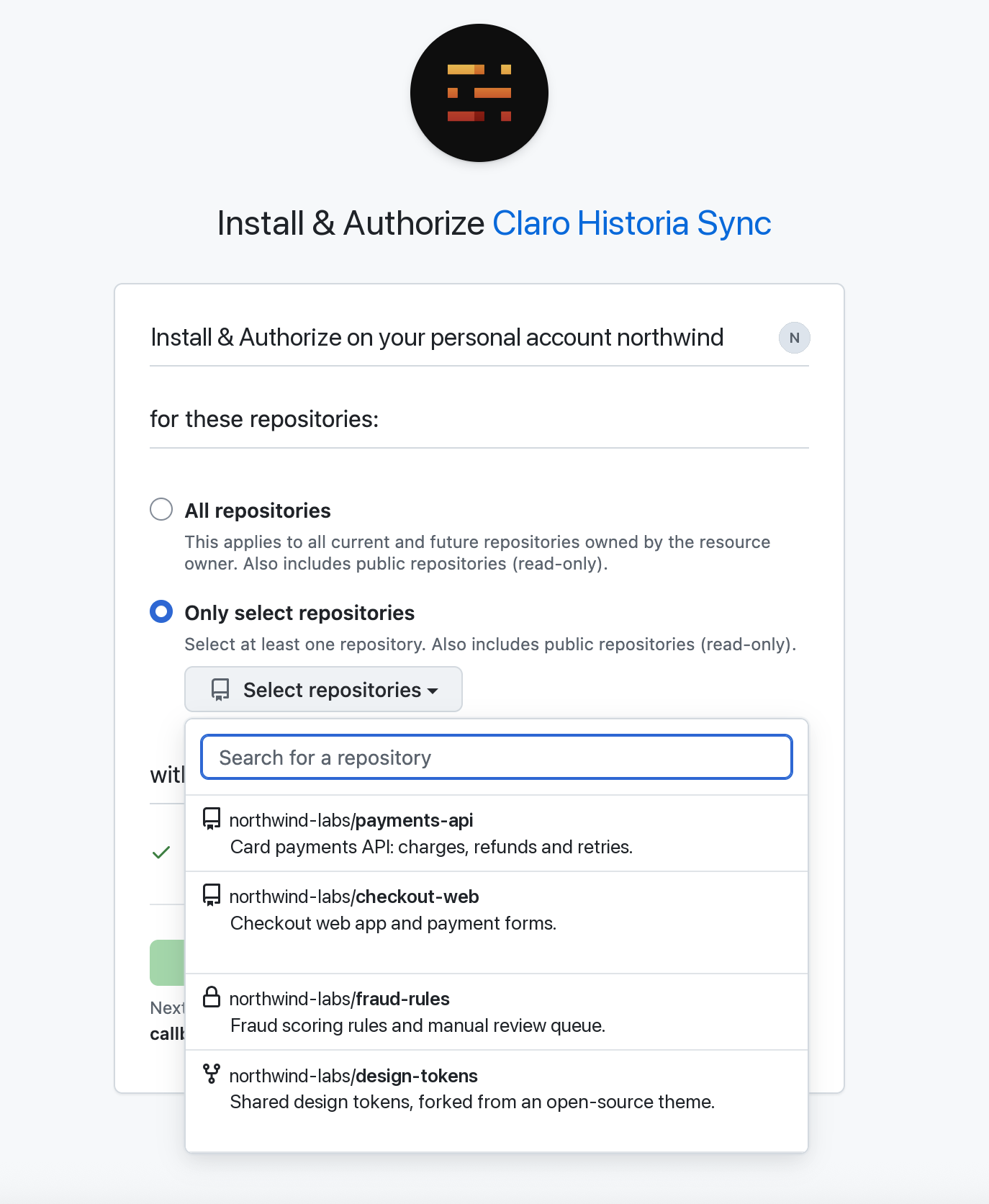
- On GitHub, choose the account or organization, then choose All repositories or Only select repositories, and confirm the install.
- You return to Claro Historia and the card shows Connected.
Choose repositories for a project
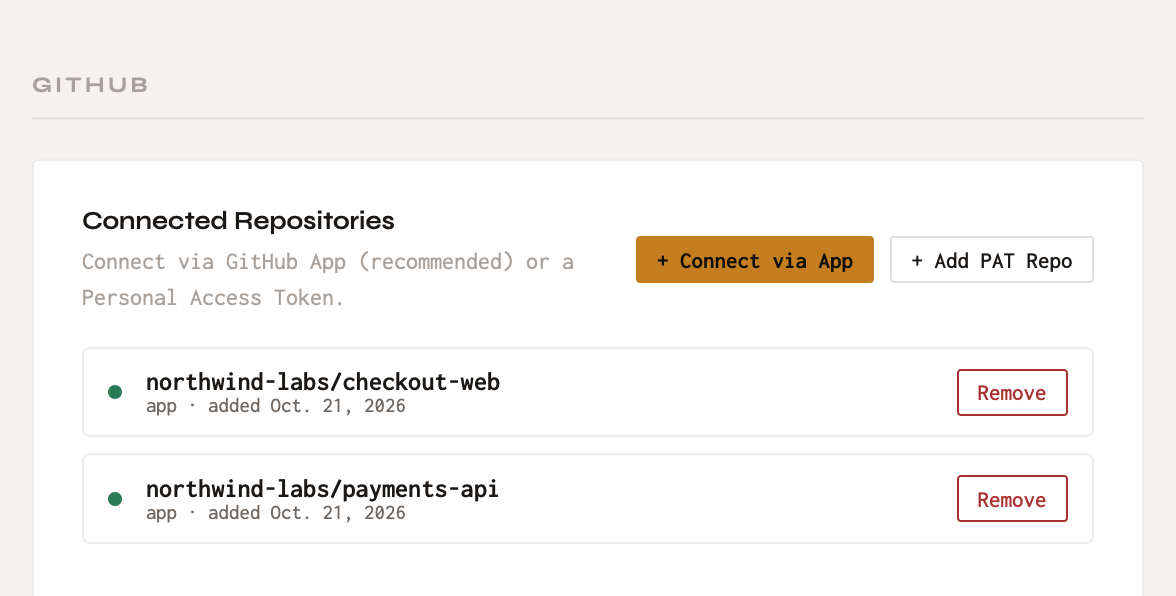
- Open the project and go to Project Settings → GitHub.
- Click + Connect via App, search the list and select the repositories to sync.
- Click Connect. An initial sync starts in the background. Use Sync Now any time you want an immediate update.
- Prefer not to install the app? Click + Add PAT and add a single repository with a personal access token instead: a classic token needs the
reposcope, a fine-grained token needs read access to Contents and Issues. The token is stored encrypted.
Good to know
- Installing from GitHub Marketplace. If you install Claro Historia from its GitHub Marketplace page first, GitHub brings you back to Claro Historia to finish: sign in (or start a free trial) and confirm the workspace to connect. The link is good for 7 days.
- If the app is uninstalled on GitHub, Claro Historia notices and the workspace shows GitHub as not connected. Install it again from Workspace Settings → Sources.
- Each GitHub installation connects to one workspace.
Anything synced into a project can be seen by every member of your workspace, because every member can open every project. That includes people who cannot open the original file or message in the source tool. Only link sources you are comfortable sharing with your whole workspace.
Disconnect
- For a project: in Project Settings → GitHub, click Remove next to the repository.
- For the workspace: in Workspace Settings → Sources, click Disconnect on the GitHub App card. You can also uninstall the app in GitHub under Settings → Applications.
Disconnecting stops syncing and removes Claro Historia’s access immediately. To have content that was already synced removed as well, email support@clarohistoria.com. See Data and security for how long data is kept.
Problems?
See Troubleshooting or email support@clarohistoria.com.