Google Drive
Documents in the Google Drive folders you link to a project.
What Claro Historia reads
- Google Docs
- PDF, Word (.docx), Excel (.xlsx), PowerPoint (.pptx), plain-text, Markdown and CSV files
- Only in the folders you link, up to 100 files per folder
Access is read-only. Claro Historia does not create, change or delete anything in Google Drive.
Permissions requested
- Read-only access to your Google Drive (
drive.readonly). Claro Historia cannot create, edit or delete files.
Before you start
- Each person connects their own Google account. Folders you link are read using the Google account of the person who linked them.
- Google’s permission screen says Claro Historia can view your Drive files. That is how Google words read-only access. Claro Historia only reads the folders you link to a project.
- Claro Historia's use and transfer of information received from Google APIs adheres to the Google API Services User Data Policy, including the Limited Use requirements.
Connect your Google account
- Click your name at the top right and open My Settings.
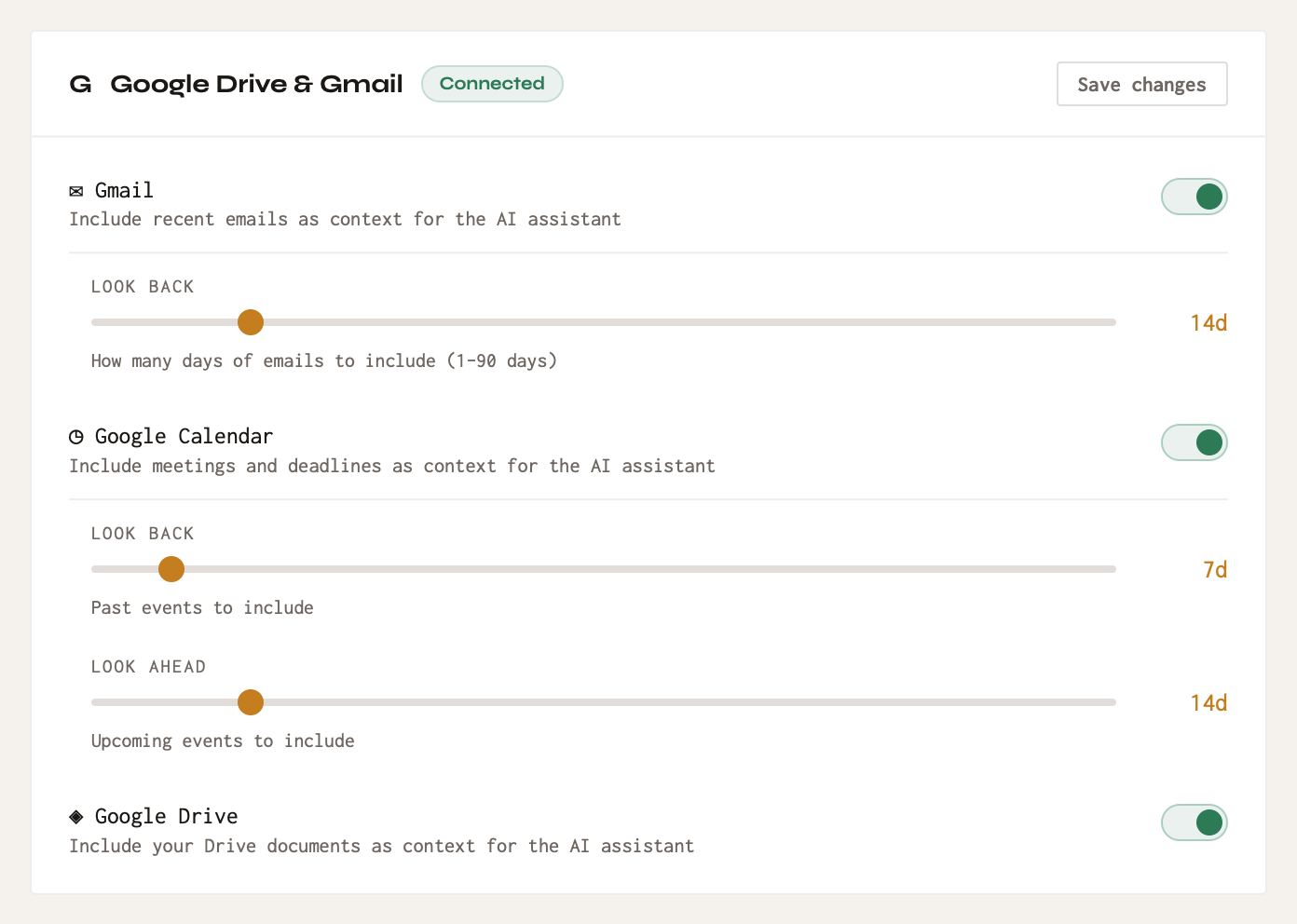
- Under Personal Integrations, in the Google Drive & Gmail card, click Connect Google Drive & Gmail.
- Sign in with Google and approve the permissions.
- The card shows Connected. The same connection also powers the optional Gmail and Calendar features, which you can turn on or off separately (see Personal accounts).
Link a Drive folder to a project
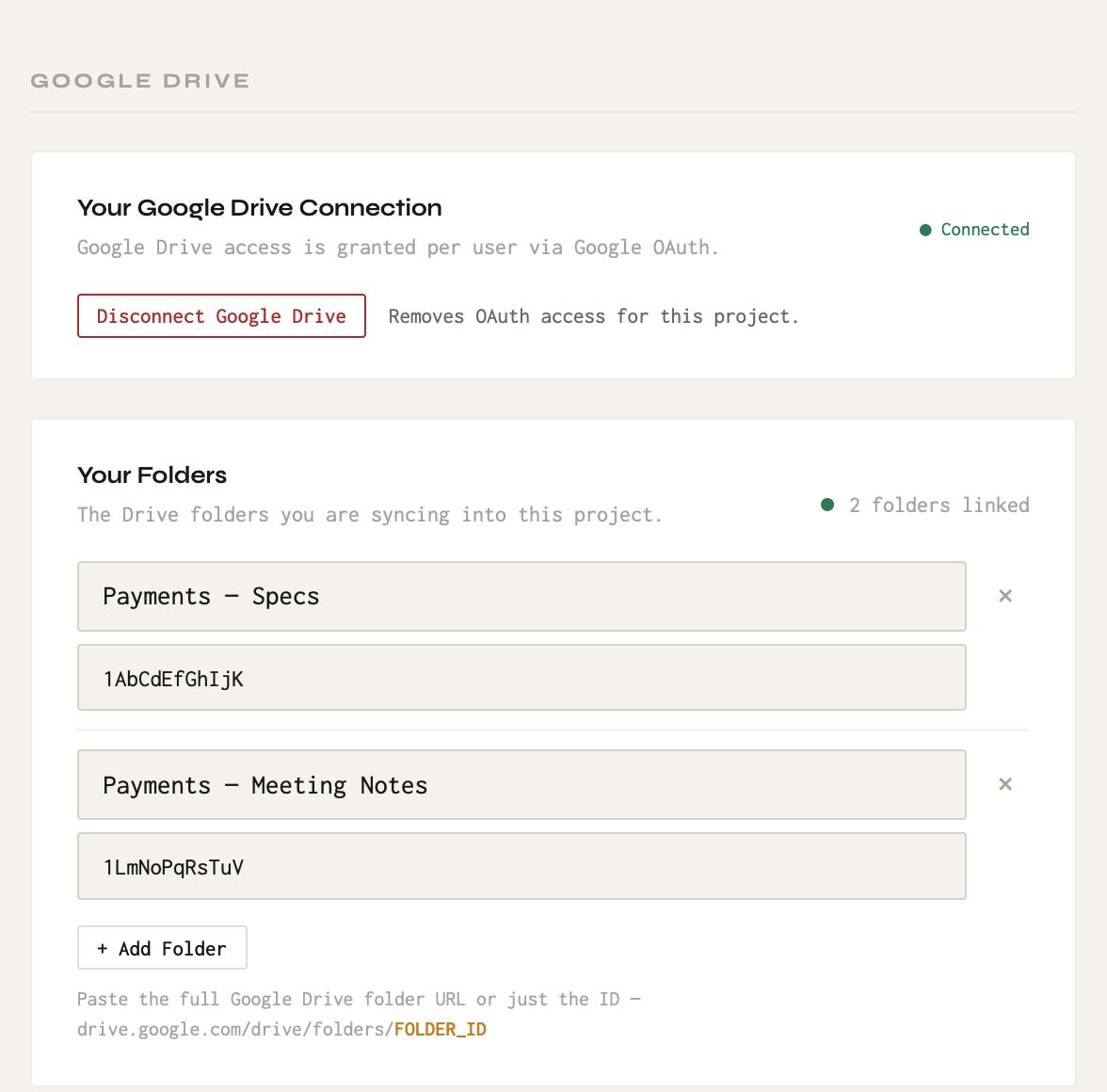
- Open the project and go to Project Settings → Google Drive (or use the Drive Folder section when you create the project).
- Paste the folder’s URL or ID. In Drive, open the folder; the ID is the last part of the address.
- The folder syncs with the next run, or click Sync in Project Settings → Sync.
Good to know
- More than 100 files. A folder with more than 100 files syncs only the first 100, and the project shows a notice. Link subfolders separately to cover the rest.
- If the person who linked a folder leaves or loses access. The folder shows a notice such as “Needs relinking” and stops syncing. Anyone on the project who has connected their own Google account can click Relink in the notice at the top of the project to take it over. Nothing is deleted in the meantime. See Troubleshooting.
Anything synced into a project can be seen by every member of your workspace, because every member can open every project. That includes people who cannot open the original file or message in the source tool. Only link sources you are comfortable sharing with your whole workspace.
Disconnect
- For a project: remove the folder in Project Settings → Google Drive, or click Disconnect Google Drive there to remove your access for that project.
- For your account: in My Settings, click Disconnect Google Drive & Gmail. You can also remove Claro Historia at myaccount.google.com/permissions.
Disconnecting stops syncing and removes Claro Historia’s access immediately. To have content that was already synced removed as well, email support@clarohistoria.com. See Data and security for how long data is kept.
Problems?
See Troubleshooting or email support@clarohistoria.com.