Getting started
From signup to your first answer in about 10 minutes.
1. Create your workspace
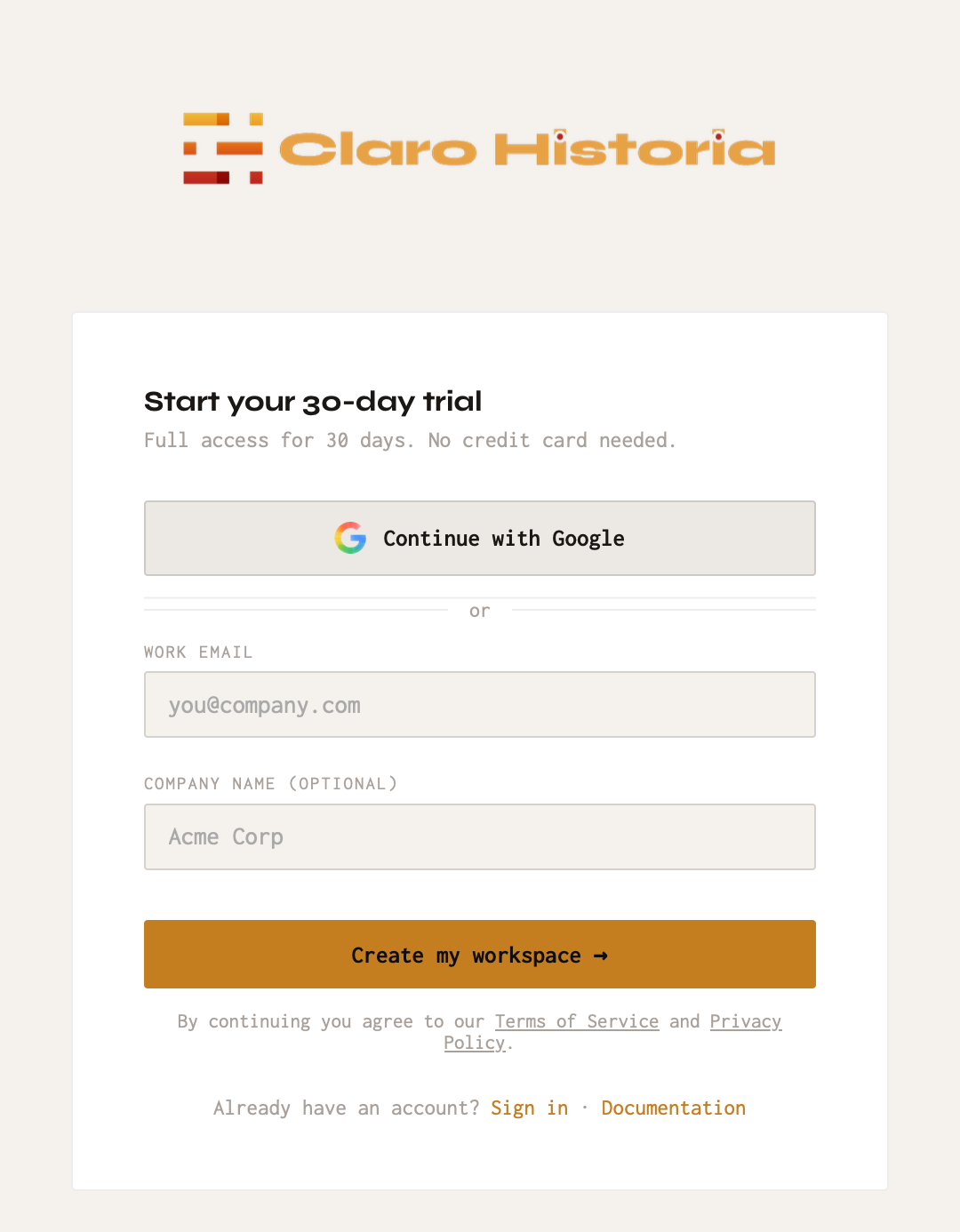
- Go to the signup page and enter your work email, or choose Continue with Google.
- If you used email, open the link we send you. It proves the address is yours and works for 7 days. Then enter your name, choose a password and agree to the Terms of Service and Privacy Policy.
- You land in your new workspace with full access for 30 days. No credit card is needed. See Plans and limits for what happens afterward.
Your workspace address is based on your email domain, for example acme.clarohistoria.com for someone at acme.com. Only one workspace is created per company email domain. If a colleague already has one, ask them for an invite instead.
2. Invite your team
- Click Admin in the left sidebar. This opens Workspace Settings (visible to admins only).
- Open Team, enter an email address, choose a role (Admin or Member) and click Invite.
- They receive an email and create their own account. Invitations expire after 7 days; you can resend or cancel them from the same page.
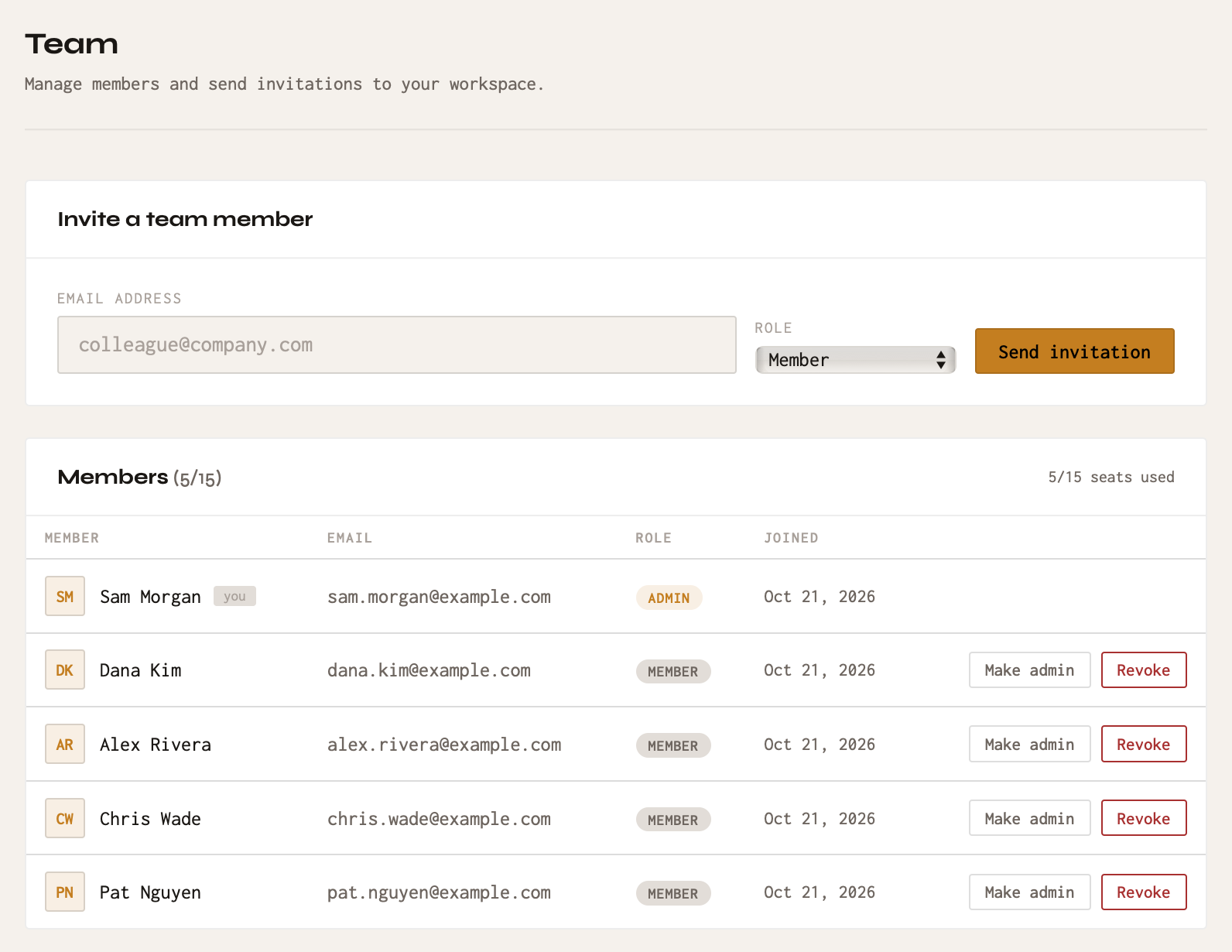
Admins manage the workspace and connect tools. Members can create projects, link sources and use the chat.
3. Connect your tools
Open Workspace Settings → Sources and connect the tools your team uses. You do not need all of them. Connecting a tool does not read anything yet: Claro Historia only reads what you later link to a project.
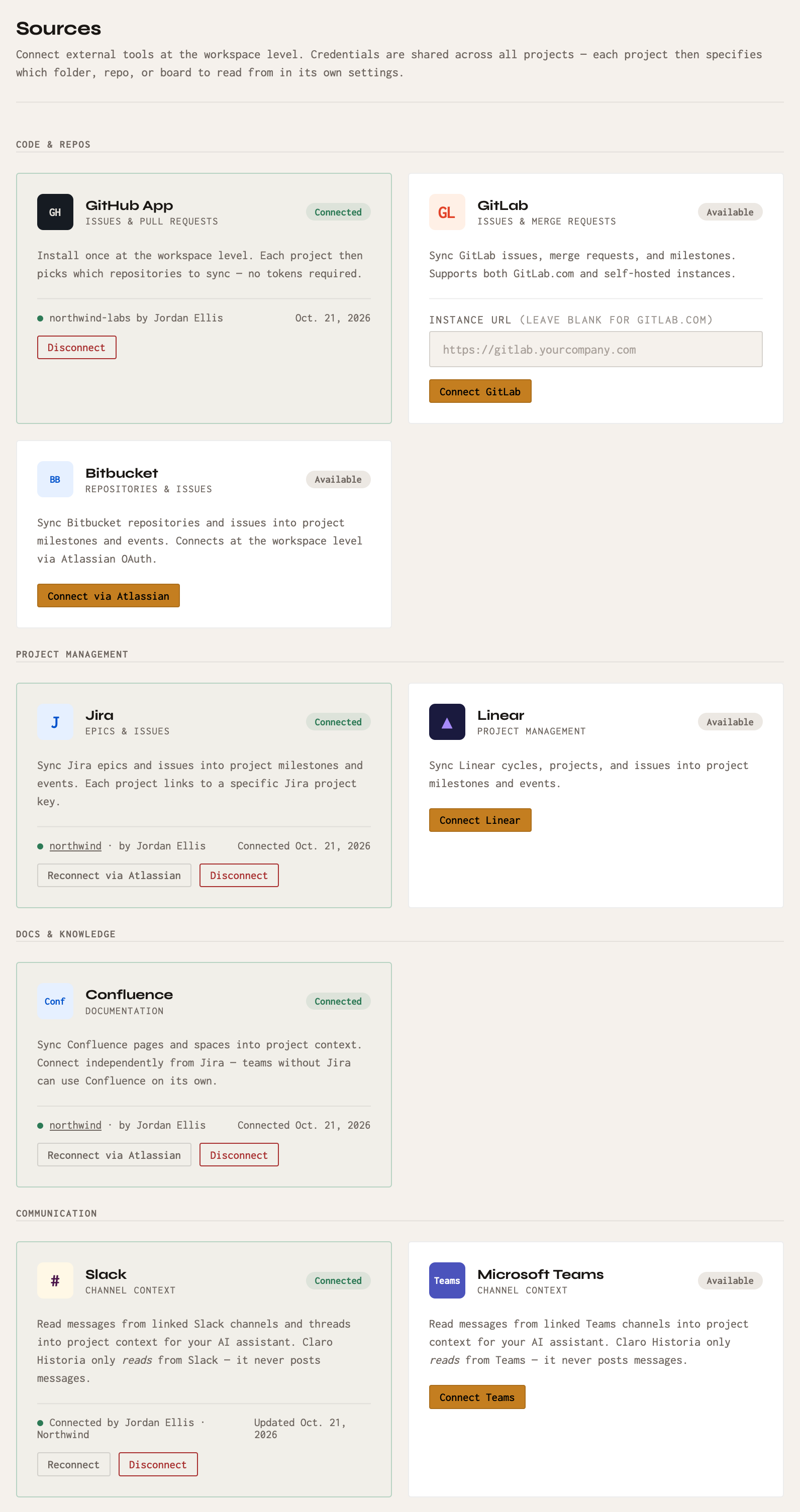
Google Drive and OneDrive are connected per person in My Settings instead. Gmail, Calendar, Outlook and Slack direct messages are optional personal connections, see Personal accounts.
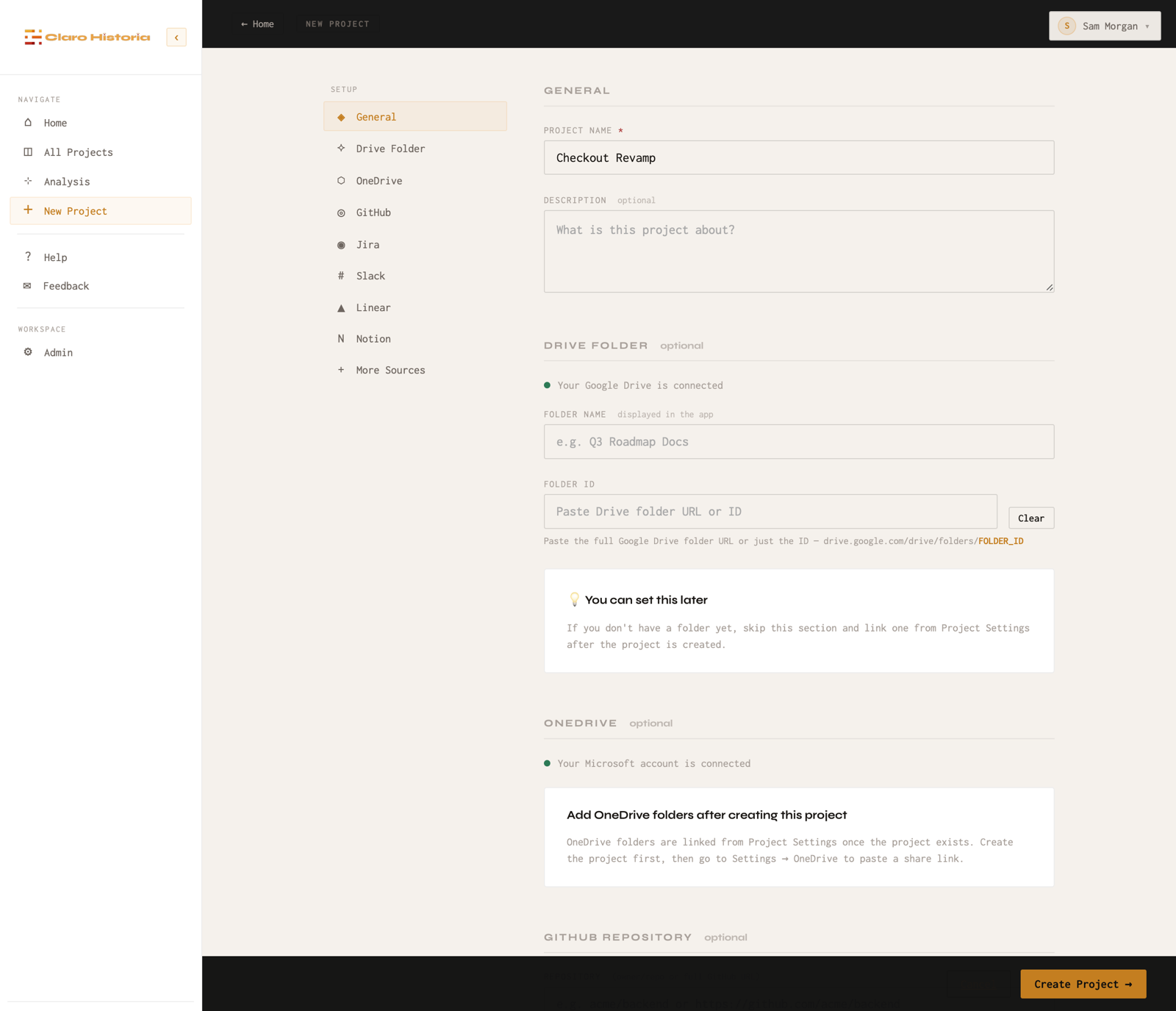
4. Create a project
- Click New Project in the left sidebar.
- Enter a name. Optionally add sources right away: a Drive folder, a GitHub repository, a Jira project key, Slack channels. You can add or change them later in Project Settings.
- Click Create Project.
5. Sync and ask a question
- The first sync starts automatically. Depending on how much content you linked, it can take a few minutes up to an hour. Check progress in Project Settings → Sync.
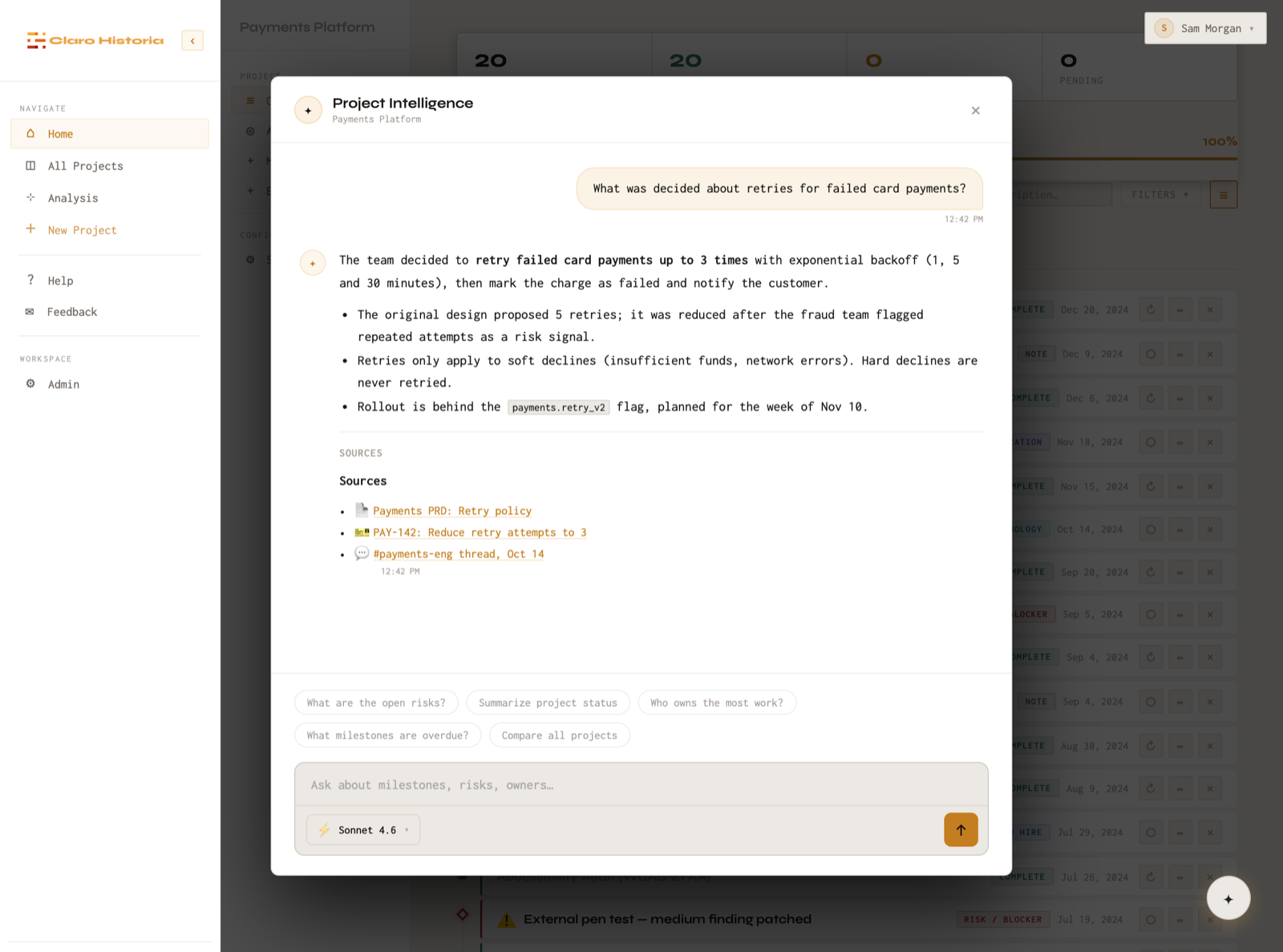
- Open the project and click the chat button at the bottom right (Project Intelligence).
- Ask a question, for example “What was decided about the authentication approach?” The answer lists the sources it used, and you can click through to the original.
Read more in Projects, syncing and chat.