Projects, syncing and chat
Create a project, link what it should read, keep it up to date and ask questions.
Create a project
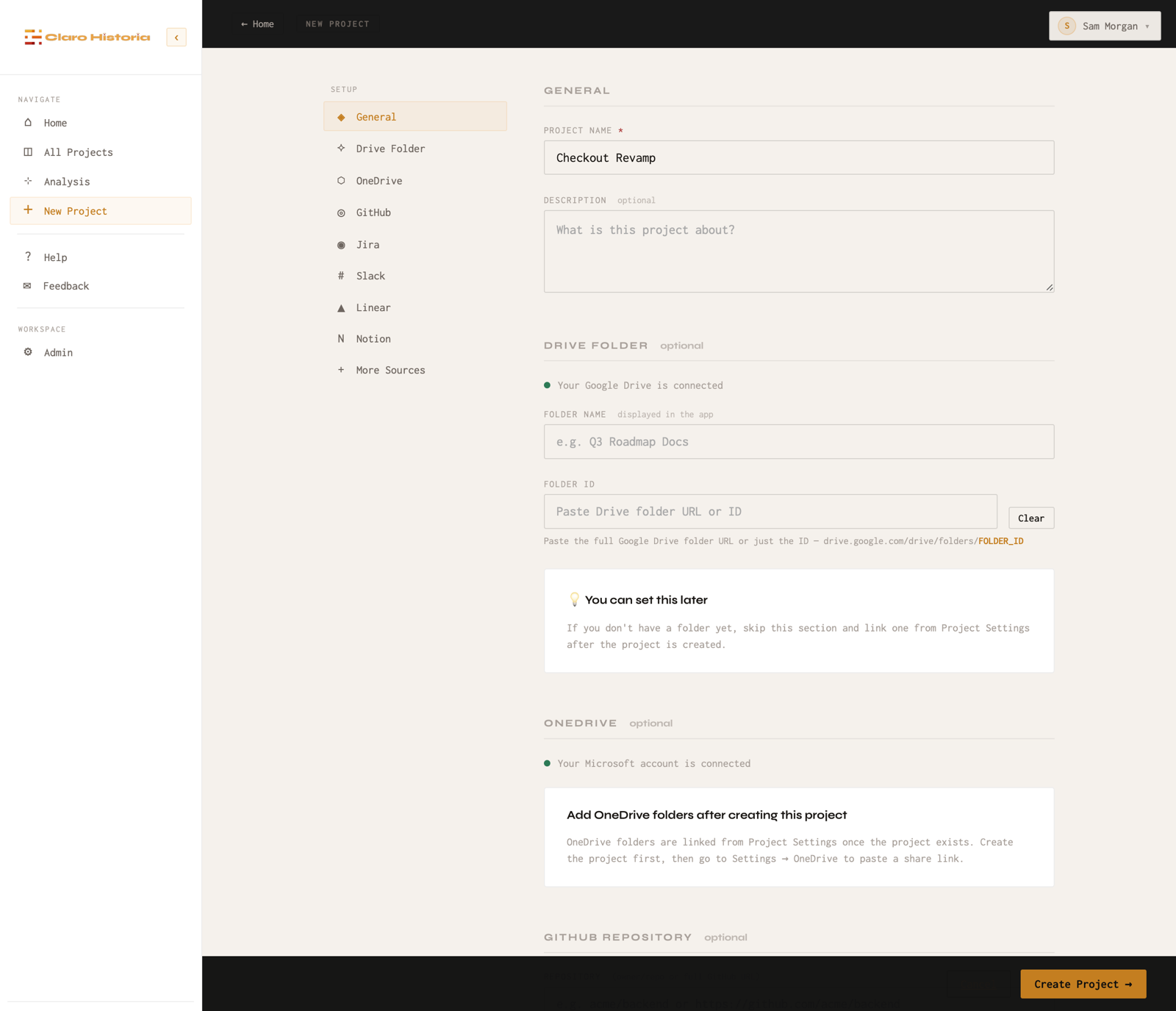
Click New Project in the left sidebar, enter a name and an optional description, and click Create Project. On the same page you can already add a Google Drive folder, a GitHub repository, a Jira project key or Slack channels for any tool that is connected. You can skip them and add sources later.
Link sources
Open the project and choose Settings in its side menu. Each connected tool has its own section (GitHub, Jira, Slack and so on) where you pick the repository, project, channel, space or folder this project should read. Tools that are not connected yet are listed under More Sources; an admin connects them in Workspace Settings → Sources.
The steps for each tool are in its own page:
Anything synced into a project can be seen by every member of your workspace, because every member can open every project. That includes people who cannot open the original file or message in the source tool. Only link sources you are comfortable sharing with your whole workspace.
Sync
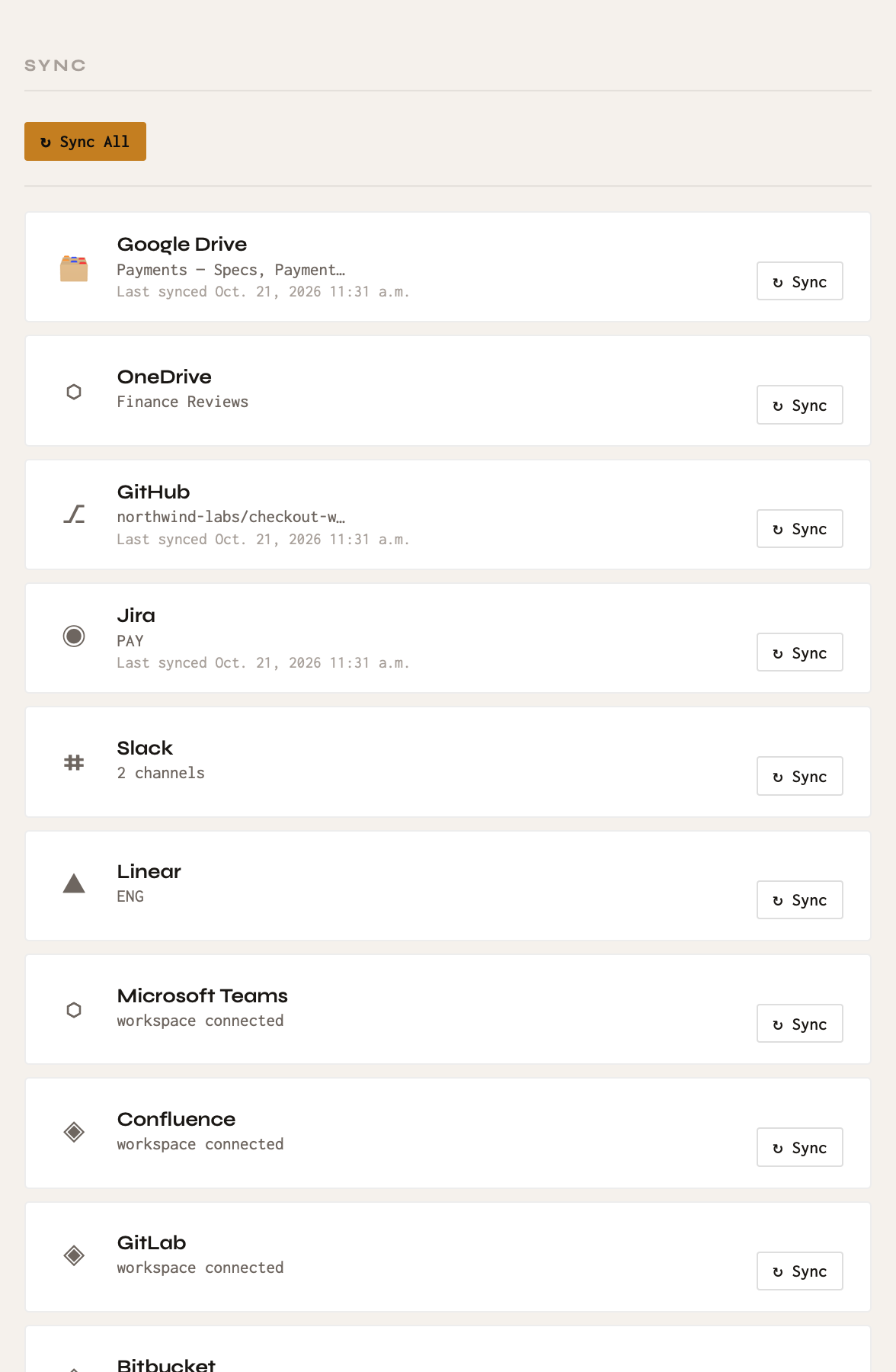
A sync reads the linked sources and updates the project’s milestones, events and the knowledge the chat draws on.
- Automatic. Sources sync on a regular schedule, and a first sync starts when you link a new source.
- On demand. In Project Settings → Sync, click Sync All, or Sync next to a single source. Each source shows when it last synced.
- Changes only. Drive files that have not changed since the last sync are skipped, so repeat syncs are quick.
- Plan limits. Reading documents with AI counts toward a monthly allowance on the free plan. See Plans and limits.
Sync notices
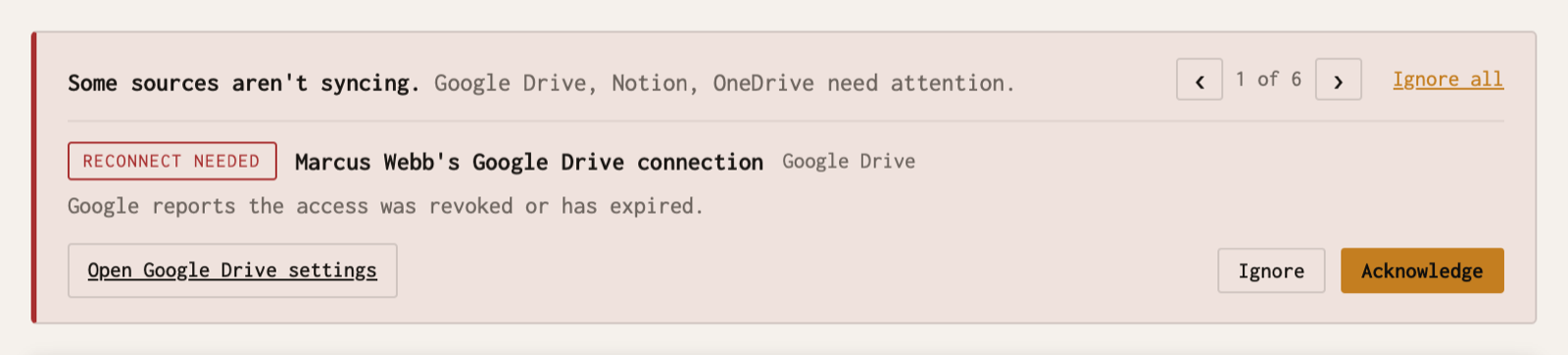
If a source stops syncing (a connection expired, someone who linked a folder left, a folder was moved or deleted), a notice appears at the top of the project and of Project Settings. When there is more than one, use the arrows to move between them. Each notice explains the problem and offers the fix, for example Relink. You can Ignore a notice (hidden for 24 hours) or Acknowledge it, meaning “I’ll take care of it” (hidden for 7 days). Ignore all hides everything currently shown for 24 hours. A hidden notice comes back if the problem is still there after that, and sooner if the problem changes. Hiding a notice only affects your own browser. See Troubleshooting.
Ask questions
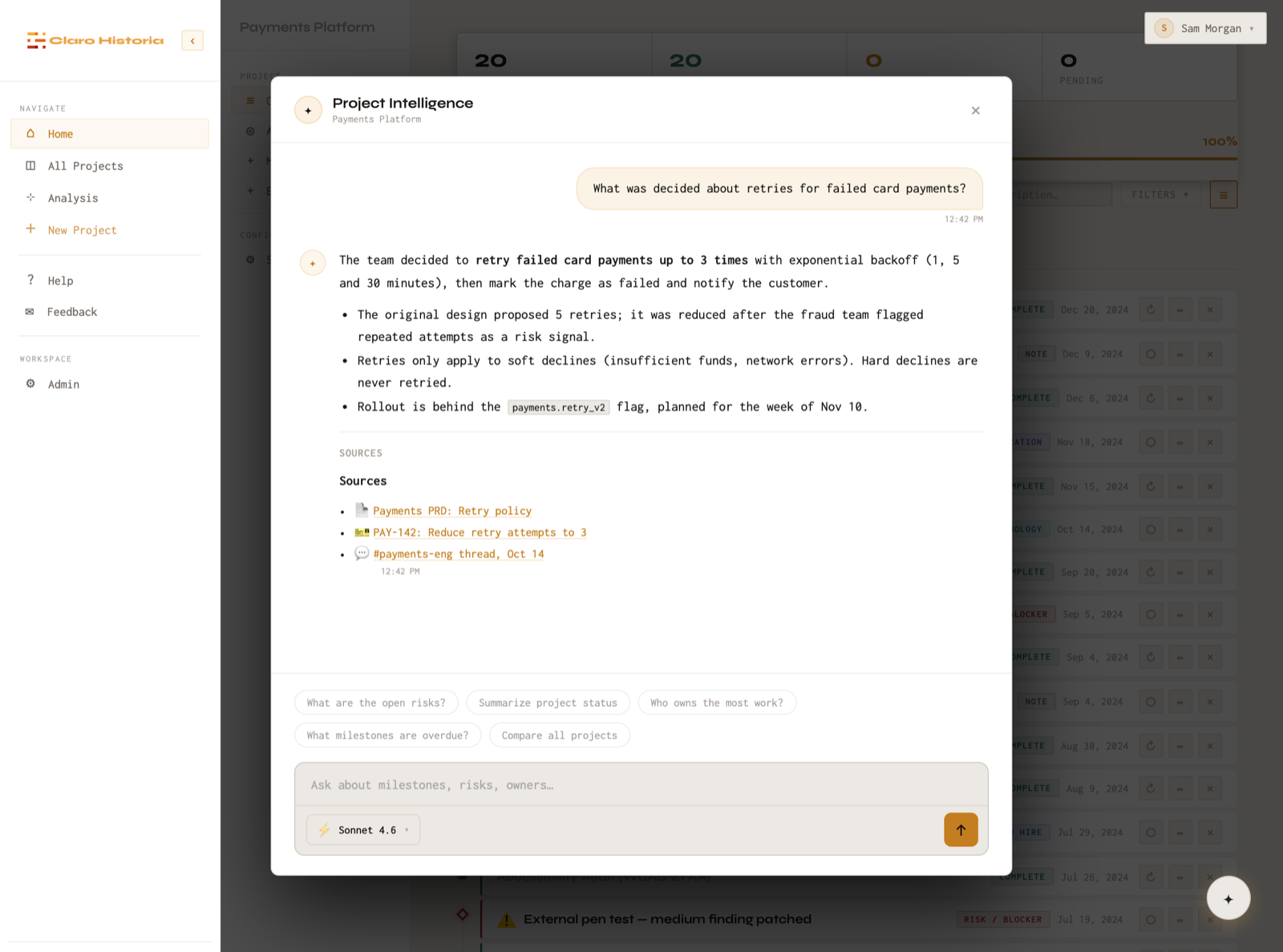
Open a project and click the chat button at the bottom right to open Project Intelligence.
- Ask in plain language: “What is the current status of the Q3 migration?”, “Who worked on the payment integration and when?”, “What are the open risks?”
- Each answer shows the sources it used. Click one to open the original document, ticket or message. If you cannot open it, you do not have access to that file in the source tool; the answer itself may still draw on it, see the note above.
- Specific questions work best. Instead of “what happened with auth”, try “what was decided about OAuth versus SSO in the last three months”.
- Answers are based on your linked sources, but AI can make mistakes. Check important details against the cited source. If an answer looks outdated, check the last sync time, or run a sync.
- The chat counts toward a monthly allowance on the free plan.