Notion
The Notion pages and databases you share.
What Claro Historia reads
- The pages and databases you share, including pages inside them
Access is read-only. Claro Historia does not create, change or delete anything in Notion.
Permissions requested
- View pages you select: you choose exactly which pages and databases to share on Notion’s own screen. Claro Historia can only read what you select there.
- View workspace users and their emails: used to show who wrote or changed a page.
Before you start
- Notion is connected for each project, by any member of the project, with a Notion account.
- Everything under a page you share is included, and new pages under it are picked up on later syncs.
Connect Notion to a project
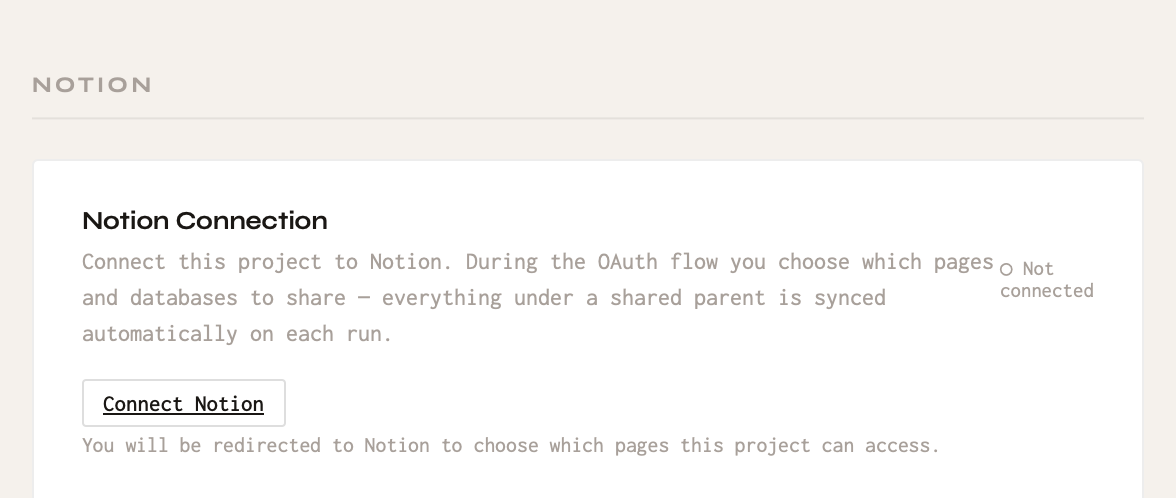
- Open the project and go to Project Settings → Notion.
- Click Connect Notion.
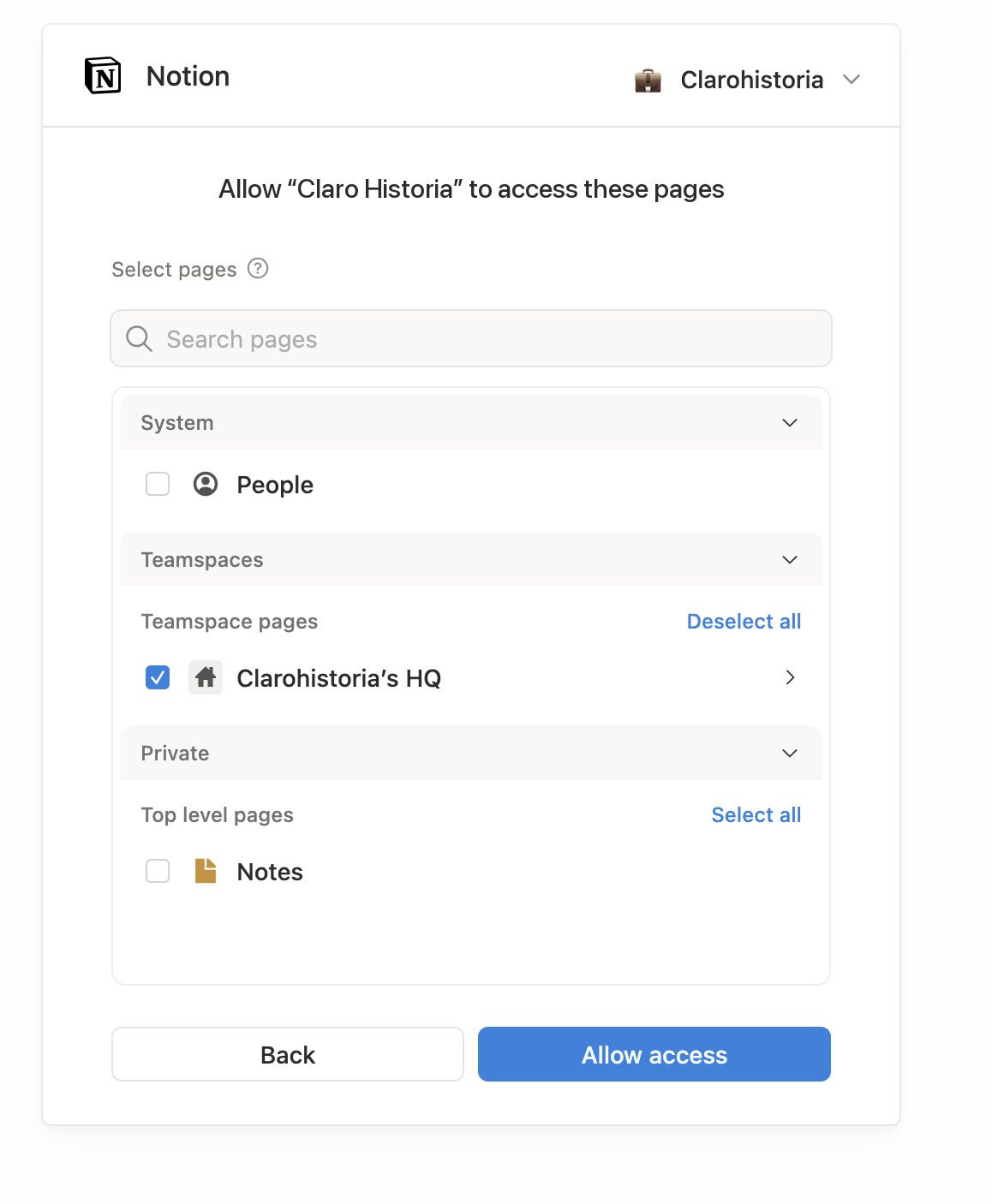
- On Notion’s page, select the pages and databases to share, then click Allow access.
- You return to Claro Historia and the section shows Connected with your Notion workspace name.
Change which pages are shared
- To share more or fewer pages, click Disconnect in Project Settings → Notion and connect again, choosing different pages on Notion’s screen.
Anything synced into a project can be seen by every member of your workspace, because every member can open every project. That includes people who cannot open the original file or message in the source tool. Only link sources you are comfortable sharing with your whole workspace.
Disconnect
- In Project Settings → Notion, click Disconnect. You can also remove Claro Historia in Notion under Settings → Connections.
Disconnecting stops syncing and removes Claro Historia’s access immediately. To have content that was already synced removed as well, email support@clarohistoria.com. See Data and security for how long data is kept.
Problems?
See Troubleshooting or email support@clarohistoria.com.